Today we are going to learn how to compile the Raspberry Pi (2/3 only) kernel from source and then patch the kernel with BFQ IO scheduler support. As of today (8/18/16) the latest kernel is 4.4.17. I am using the latest (Jessie) Raspbian release. So what is BFQ?�More about BFQ
BFQ is a proportional-share storage-I/O scheduler that also supports hierarchical scheduling with a cgroups interface.
BFQ provides low latency for interactive and soft real-time applications, high throughput, and strong fairness guarantees. The code is fairly mature�and it has been around for awhile. I especially�prefer BFQ on mobile and embedded devices. Let’s dive in. (Note that this guide only covers native compiling, if you are cross-compiling from another arch, check out�this�article for more information.)
We’ll need to grab the latest kernel sources from the Raspberry Pi github:
git clone --depth=1 https://github.com/raspberrypi/linux
This will clone only the latest source from the default branch (which is currently 4.4.y) We’ll need to install bc also.
sudo apt-get install bc
Now that we have our sources and dependencies met, we’ll want to grab our BFQ patches and apply them to our source:
cd linux/


VERSION=4.4.0-v7r11


wget -nd --no-parent --level 1 -r -R "*.html*" --reject $VERSION \\
    http://algogroup.unimore.it/people/paolo/disk_sched/patches/$VERSION


git am *BFQ*.patch
You will see the patches applied, and if successful, no errors. Next we’ll need to modify the kernel configuration to enable BFQ and set it as the default IO scheduler.
KERNEL=kernel7
make bcm2709_defconfig
To modify the kernel configuration, there’s a number of options available. You can simply use your favorite text editor to edit the .config file, or you can use a tool like ‘make menuconfig’ (ncurses.) I’ll be using ‘make menuconfig’ which requires that libncurses5-dev is installed.
sudo apt-get install libncurses5-dev
and then I’ll run:
make menuconfig
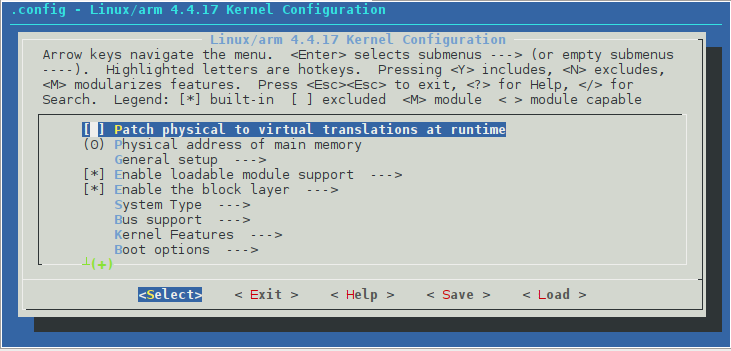 We’ll need to navigate to ‘Enable the block layer’ and hit enter:
 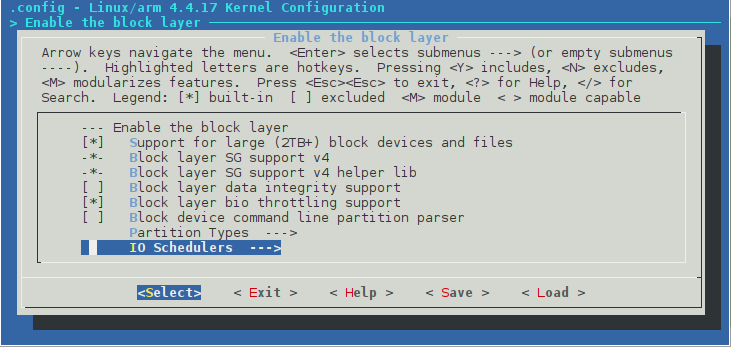 From there, we’ll go down to ‘IO Schedulers’ and hit enter again:
 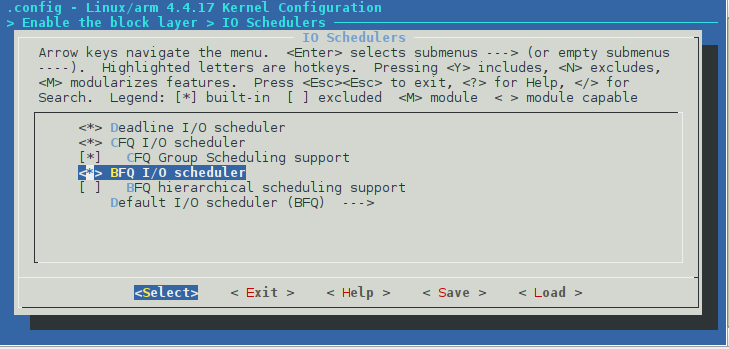 Here, we’ll highlight ‘BFQ I/O scheduler’ and hit space twice. We want an asterisk ‘<*>’ next to the BFQ option, and not an ‘
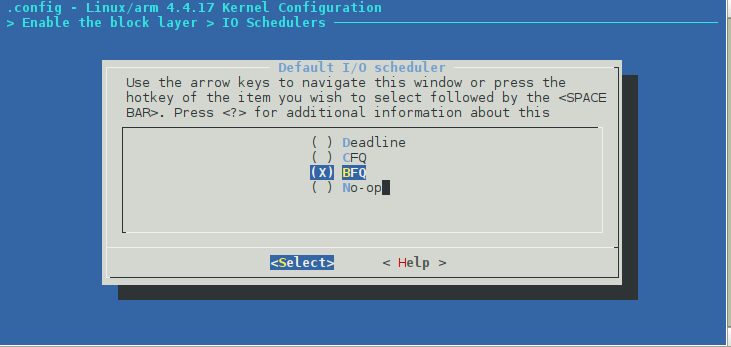 This will set BFQ as our default I/O scheduler.�After choosing BFQ, we can hit ‘ESC’ to back up until we get back to the main menu from the first picture. We’re going to modify the local version to append to the kernel release. I do this on Raspberry Pis to prevent us from overwriting the original kernel modules in /lib. We’ll choose ‘General setup’ and hit enter:
 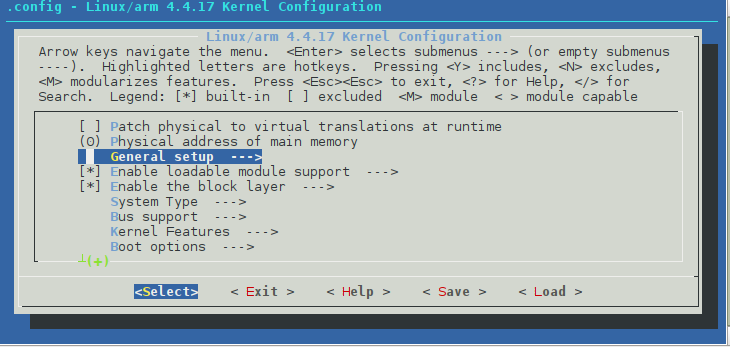 Then we’ll select ‘Local version - append to kernel release’ and hit enter:
 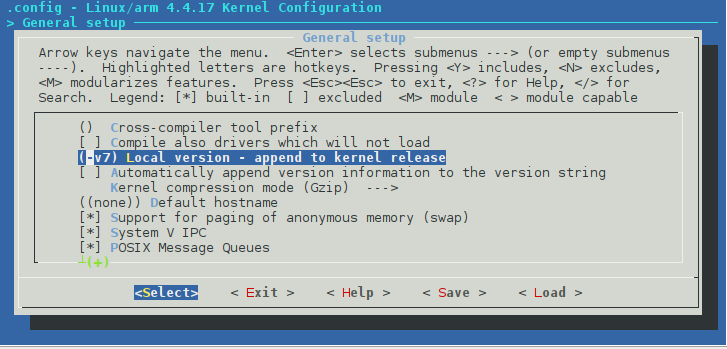 You can set this to whatever you like, here’s what I did:
 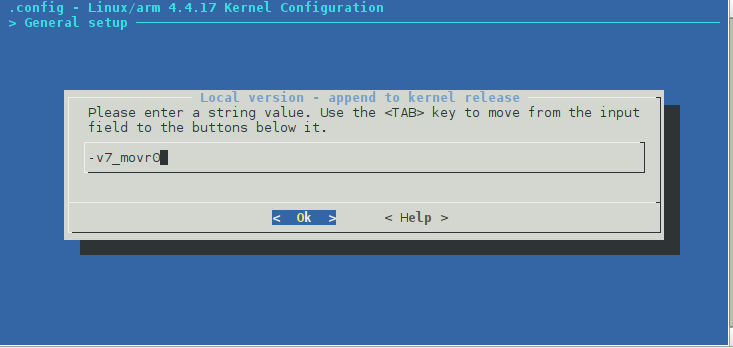 We can now use our arrow keys to scroll over to Save (we’ll leave the filename as .config) and then we’ll scroll over to exit (you might have to hit exit twice.) We’ve successfully modified our kernel configuration. We now have our kernel sources patched and our configuration updated for BFQ. We’ll now compile the kernel (Note: Doing this on the Raspberry Pi will take a LONG time.)
make -j4 zImage modules dtbs
Once that is done, we’ll need to copy over our freshly compiled files to /boot/ and install our modules.
sudo make modules_install
sudo cp arch/arm/boot/dts/*.dtb /boot/
sudo cp arch/arm/boot/dts/overlays/*.dtb* /boot/overlays/
sudo cp arch/arm/boot/dts/overlays/README /boot/overlays/
And finally, we’ll create our kernel image and copy it to /boot. To be safe, I like to backup the original kernel image first:
sudo cp /boot/kernel7.img /boot/kernel7.bak
Then make the kernel image:
sudo scripts/mkknlimg arch/arm/boot/zImage /boot/$KERNEL.img
This will generate the kernel image and copy it to /boot/ with the filename kernel7.img and replace the old kernel. You can change ‘$KERNEL.img’ to anything you’d like, for example ‘movr0.img’ to avoid overwriting the original kernel and add a simple line to your /boot/config.txt
kernel=movr0.img
There’s one more thing we need to fix before rebooting, we’ll need to modify /boot/cmdline.txt by changing:
elevator=deadline
to
elevator=bfq
and that’s it! You’re done, enjoy!